

Something strange happens when you try to print a Hindi newspaper PDF file with standard software. On the final print, almost every single line dissolves into a series of blank squares or jumbled Latin characters. Anyone who has worked a Hindi newsroom desk has had this experience before. This happens because the average PDF or print software isn’t built to process Hindi.
Hindi is written in Devanagari — a complex script with complex conjuncts, vowel markers (matras), and half-consonants. Printing them requires precise text-shaping and font-embedding. When PDF software isn’t designed to handle those tasks during printing:
- The letters will change shape
- The matras will detach from their consonants
- The letters and matras will both carry vowel marks above and below the lines
Any standard PDF editing/printing software that treats Hindi text like plain English will always mangle the Devanagari script logic in these ways. So if news professionals want to learn how to print Hindi newspaper PDFs, they must first learn which software tools are suited for Hindi printing.
And this is a must-learn skill for Hindi-language journalists, editors, publishers, and news orgs that still have to manually print out their newspapers for:
- Archives
- Court records
- Editorial markups
In this blog, we’ll explain the ‘right’ way to create Hindi newspaper prints. We’ll review 10 PDF software to print Hindi newspapers in the ‘right’ error-free way. Several news organizations nowadays also rely on a cms for an online news portal for proper organization and management of their digital editions, in addition to their print workflows.
How to Print Hindi Newspaper PDF: What You Need to Know
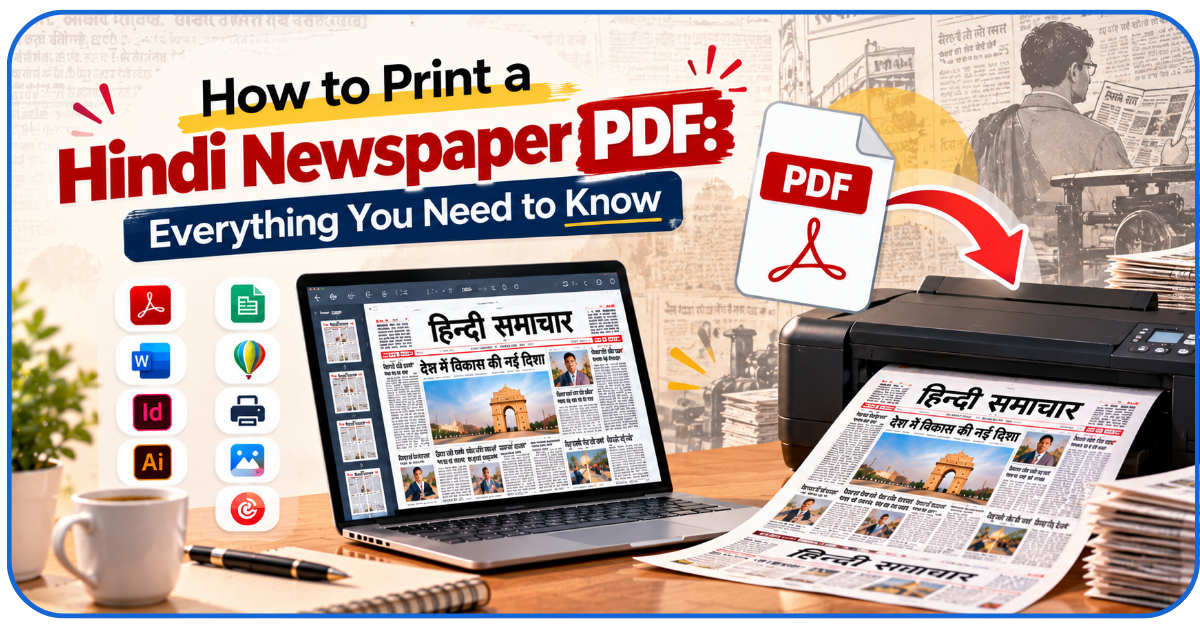
Here’s what usually happens when you have to print a Hindi newspaper PDF:
- Obtain the Hindi Newspaper PDF: This might be a digital replica (ePaper) downloaded from a publication’s website, a page exported from your own layout software, or a scan of the physical newspaper from the newsroom.
- Check if the PDF Has Selectable Text: Open the file and try clicking/dragging across a headline. If you can highlight individual words, you’re dealing with live Unicode text. Then, the software may or may not allow you to edit the PDF. If nothing highlights at all, or the whole page highlights as 1 block, it’s a scanned image. Print quality will then depend on the file’s image resolution.
- Open it in a Compatible PDF or Printer Software: Here, if you pick the right software, you can edit/manipulate the Hindi-language PDF and make it print-ready. If the software doesn’t support Hindi editing, the print will have 2 key issues we’ll explain below.
- Select Correct Paper Size: Newspaper broadsheets are much larger (600mm wide or more) than office paper. You’ll have to scale the file or set custom dimensions to print it on A4 paper without damaging the text’s readability.
- Check Orientation and Page Scaling: Next, ensure the document is set to portrait or landscape, as the layout dictates.
- Choose Single- or Double-Sided Printing: This step depends on what you’re using the print for. If it’s for an internal editorial review, going Duplex will save paper. But if legibility is essential, you’ll have to stick to single-sided.
- Preview the Document: Next, zoom in on the print preview display. Inspect whether individual letters like ‘प्र’ or ‘क्ष’ are all stacked on the same line or if they’re floating free. If all the letters are not aligned, you’ll need to manually edit the text with the software.
- Print: Archive the file and then hit ‘CTRL + P’.
This sequence can only succeed IF you use the right software to print Hindi newspaper PDF. The software should let you manipulate the Hindi PDF file and make it print-friendly.
If you use the wrong software, you’ll likely face these 2 errors in the final print:
- Font Substitution: If the PDF doesn’t have its Hindi fonts embedded, the printing software will grab whatever Devanagari font it can find on the system. Then, even basic words like ‘समाचार’ will become unreadable in the final print.
- Broken Text: Poorly exported PDFs store corrupted character maps. They make the print engine read the underlying codes wrong and detach vowel signs from their consonants in the print. Your software must have the features to work around this issue.
Let’s go through 10 tools that have the right features to help you avoid these errors.
10 Software to Print Hindi Newspaper PDF
-
Adobe Acrobat Reader
This is the go-to PDF-editing tool in newsrooms.
Acrobat Reader’s print engine supports the dense, vector-heavy layouts newspapers produce. It offers specific support for all the key print standards (like PDF/X) used in the newspaper industry.
For Hindi printing, its stand-out features are:
- Print-as-Image: This lets you rasterize the entire page and bypass the font and character-mapping problems entirely. If a file from an outside stringer shows garbled Devanagari in every other program, with this feature in Acrobat, you can still print it perfectly.
- Snapshot: This feature lets you drag a box around a single article and print just that selection.
- Scaling Controls: You can use the ‘Actual Size,’ ‘Fit,’ or ‘Shrink to Printable Area’ controls to force broadsheet dimensions onto office paper without cropping the headlines.
There’s another helpful feature: font embedding repair. It lets you individually fix specific Hindi letters that aren’t coming out right in the print preview. But it’s only available in the paid version.
Is this a must-use tool for journalists today? No, because there are several other options. But there are some other tools journalists today must use to publish news quickly. Check them out here.
-
Foxit PDF Reader
Foxit markets itself as a ‘faster Acrobat.’ That speed has made it popular in busy Hindi newsrooms where people use it to quickly print newspaper PDFs with:
- Unusual dimensions
- Large page counts
For Hindi newspaper printing, it offers two specific features:
- Print-as-Image: Just like with Acrobat Reader — for uneditable files, this feature lets you print the whole PDF as an image.
- Snapshot: Lets you draw a rectangle around one column, cartoon, or chart, right-click, and print only that selection.
The free version is only good for creating basic prints for internal use – not for commercial press-work. Advanced features like color management are only available in the paid version.
-
PDF-XChange Editor
This is a viewing tool as well as software to print Hindi newspaper PDFs.
It holds up impressively under large files stuffed with 300-DPI press photographs. So if you’re printing an image-heavy Sunday-edition newspaper, XChange Editor can be very effective.
- Rendering: Hindi text in this software renders through standard Windows font APIs. So, if your PDF has properly embedded Unicode Devanagari, the print display will be reliably error-free.
- Granularity: You can configure settings like print resolution, halftone, scaling percentages, and page-range logic to make the print look extra-appealing.
The only downside of this tool is its complex interface that’s full of menus and toggles. So, it’s better suited to be a desk editor’s tool, not the field reporter’s.
-
SumatraPDF
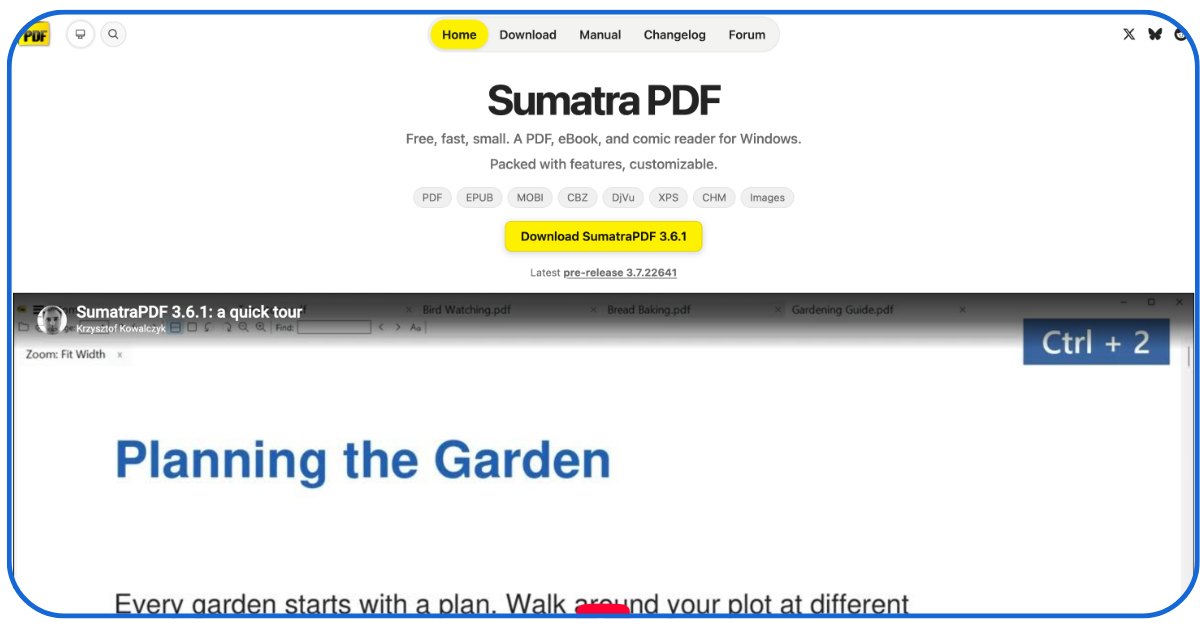
SumatraPDF is the opposite of PDF-XChange — it:
- Has a simple interface
- Offers minimal configurability
- Can operate on 15-year-old devices
But it still opens heavy graphical e-papers almost instantly with its MuPDF rendering engine, which handles fully embedded Unicode fonts well. To use it:
- Just open the software
- Load the Hindi newspaper PDF file
- Hit ‘CTRL + P’
But this only works with non-corrupted PDF files. If a Hindi file has corrupted font maps, SumatraPDF will print the garbage faithfully, because:
- There’s no snapshot feature that lets you only print the readable, non-corrupted sections
- There’s no ‘print-as-image’ escape hatch
This software to print Hindi newspaper only works with clean files (not problem files). It’s suitable for correspondents in the field who need fast printing, but are okay with lower-quality prints.
-
Nitro PDF Reader
Nitro positions itself as an Acrobat-style tool at a mid-range price. And its print quality is genuinely just as good. The viewing and printing engine works fine with large, graphics-heavy layouts.
For Hindi newspaper PDFs, it has two helpful production features:
- Nitro lets you tag a document’s language as Hindi. That tells built-in assistive tools and processors which Unicode character set they’re dealing with.
- Its Embed Fonts feature lets production editors force missing fonts into a file before printing.
However, these features that make Nitro useful for Hindi printing both sit behind the paid license. With the free version, you don’t get these extra features that make it possible to print ‘problem’ files.
-
Wondershare PDFelement
PDFelement is:
- Far more capable than a normal PDF reader
- Far cheaper than Acrobat Pro
- Has editing, page organization, and OCR features built in
- Has page-management features (merging, splitting, extracting, and reordering) that let you assemble reference dossiers from scattered newspaper PDF files
But Hindi is not among PDFelement’s supported OCR languages. So if your core need is converting scanned legacy Hindi clippings into editable text, you’ll want a dedicated Hindi OCR tool instead.
Where PDFelement still shines for Hindi users is:
- Printing well-formed Unicode PDFs
- Clean page extraction from ‘good’ 40+ page files
-
Google Chrome
Chrome is low-key one of the best Hindi PDF printing tools out there because:
- Its built-in viewer is powered by the open-source HarfBuzz
- This text-shaping engine helps it effortlessly render complex scripts
HarfBuzz is also used by:
- Android
- Firefox
- Adobe’s own design tools
HarfBuzz mathematically computes how Devanagari conjuncts and matras should combine. This is why files that print as gibberish in some desktop apps open flawlessly in Chrome.
Chrome works in RGB only, though. You don’t get features like:
- CMYK separation
- Bleed marks
- Overprint preview
So, it’s a decent tool for in-office printing. But it’s not fit for commercial press runs. Here’s how to print Hindi newspaper PDF files for fast, internal work with Chrome:
- Drag the PDF into a browser tab
- Choose your pages, scale, and orientation
- Hit Ctrl + P
-
Microsoft Edge
Edge runs the same Chromium engine as Chrome, which means it has the same HarfBuzz-powered Devanagari rendering strength. If Chrome can render a Hindi PDF file, Edge almost certainly will too.
What makes Edge slightly better than Chrome is the annotation layer.
Editors can ink corrections directly onto the Hindi PDF with a stylus on a Windows tablet or touchscreen laptop. They can then print the marked-up copy straight to the design desk.
But, just like with Chrome, Edge is only suitable for fast, in-house printing. It’s not for commercial press runs, as it does NOT offer features like:
- Font-embedding
- PDF/X validation
- Commercial Color Management
-
Preview (macOS)
Preview is the default PDF app on every Mac, iPhone, and iPad. It’s what many Indian news professionals on macOS actually use day-to-day, and it’s better than what most people think:
- Apple’s CoreText engine renders Devanagari smoothly
- Preview’s ColorSync integration feature makes the printed pages closely match what you see on screen
However, you need to be aware of its limitations:
- Preview can alter a PDF’s content after you hit ‘re-save’
- Complex character maps and form fields can shift in the final print
- Just like with Chrome and Edge, it offers no print-as-image fallback feature
So, never use it for commercial-grade printing.
-
PDF24 Creator
When you install PDF24 on Windows, it also installs:
- A virtual PDF printer
- A drag-and-drop toolbox you can use to assemble documents
With these two, you can ‘print’ any document to PDF24 and get a clean, flattened PDF file. The tool automatically converts troublesome vector text into universally readable output.
This software to print Hindi newspaper also has an easy-to-use merge and split feature that’s great for stitching together multiple PDF sections into one archival master file. But there is NO:
- Font-embedding inspection
- ICC profile support
So, you can use this free and fully offline tool to assemble documents and print papers for informal work. But PDF24 is not for commercial-grade printing.
How to Choose the Right Software to Print Hindi Newspaper
Which of these 10 should you use? Use this list of priorities to make your pick:
- Hindi Text Compatibility: If the PDF files you generally work with have well-formed Unicode, every tool here will work fine. But if you regularly work with ‘problem files,’ stick to the tools that offer ‘print-as-image.’
- Print Quality: Do the files you’re printing have multiple photographs/charts? Then, to print them properly, you’ll need CMYK-aware tools like Acrobat or the paid tiers of Foxit or Nitro.
- Page-Size Support: Acrobat and PDF-XChange offer the most precise scaling control. Use them if you’re constantly printing broad news-sheets on A4 paper.
- Page Selection: Look for tools that have the ‘snapshot’ feature like Acrobat and Foxit. They’ll let you print just one page or one section out of a 40-page file.
- Ease-of-Use: None of these tools (maybe except for PDF-XChange) are hard to use. Chrome and SumatraPDF are probably the easiest. Try the free versions of each tool to see which one you find the easiest.
- Batch/Document Management: Nitro’s batch processing and PDF24’s merge/split feature let news organizations print multiple editions of the same paper quickly.
- The ‘right’ software to print Hindi newspaper files is whichever suits the types of files you work with most.
Publishers interested in making a news portal can successfully synchronize effective PDF and print workflows with reliable digital publishing tools. This would help in ensuring consistency across online and offline channels.
Tips for Printing Hindi Newspaper PDFs Clearly
Before you start printing, it is important to know how to print Hindi newspaper PDFs so that you get the best results. Follow these tips carefully:
- Check the PDF’s Original Page Size: Standard broadsheet dimensions are vastly larger than office paper. Don’t shrink the broadsheet too much. Or else, small Hindi characters like ‘क्ष’ or ‘ज्ञ’ may fill in with the ink and make the whole text unreadable.
- Use the Correct Paper Orientation: Check the original paper’s orientation – portrait or landscape – and print accordingly.
- Check Hindi Fonts: Go to File > Properties > Fonts. If legacy fonts (like Kruti Dev or Chanakya) are listed without the ‘(Embedded)’ tag, the text will print as gibberish. If embedding is missing, use ‘Print-as-Image.’
- Use Print Preview: Zoom in to 100% to inspect if complex conjuncts like ‘प्र’ or ‘ट्र’ are visible on the screen. If not, use the software’s text shaping features to correct them.
- Print Test Page: Print the most complex, text-heavy page first. Check if the software handles the complex vector paths of the Devanagari script. Print the rest of the file only if the software passes this test.
- Check the PDF: If the Hindi PDF is a scanned legacy archive, it’ll rely only on image resolution, not font-rendering. In that case – apply custom contrast enhancement in the printer driver settings. That’ll darken the Hindi text and make it ‘pop.’
- Organize your Digital Copies: Maintain a chronological order when you assemble different pages for printing. Proceed with batch printing only after every file is chronologically named and ordered.
New Traffic Tail Can Help You Create an Online News Portal
While software to print Hindi newspaper PDFs is still greatly useful for Hindi-language journalists, the true home for modern news orgs today is online. That’s where New Traffic Tail can help.
We’ve created many world-class online news portals with:
- Dynamic breaking news sliders
- Seamless offline PDF e-paper integration
- Comprehensive social media and PPC marketing strategies
- SEO optimization and guaranteed Google ranking
If you’re a journalist, publisher, or a media leader, New Traffic Tail can help you build your dream online news portal. We’ll even show you how to attract traffic to your news portal.
Make your news accessible across devices and give your traditional newspapers an equally good, if not better, digital counterpart!
Conclusion
The key to learning how to print Hindi newspaper PDFs is simple. Pick the right software for the task and then use its built-in features to eliminate the risk of printing errors.
And the ‘right’ software depends on what types of PDF files you usually print and the level of printing quality you need. Once you find reliable software to print Hindi newspaper PDFs, focus on solidifying your online presence.
Create a custom news portal that makes your Hindi journalism reach every reader it deserves!
FAQs
Q1- Can I print a Hindi newspaper PDF without downloading any software?
Yes, with Google Chrome or with the built-in software (Edge or Preview) on your device!
Q2- How can I preserve the original newspaper layout when printing a PDF?
Layout breaks only happen when the print engine tries to reinterpret your document. To stop interpretation altogether, use the ‘Print-as-Image’ feature.
Q3- Can I print only a specific article from a Hindi newspaper PDF?
Yes, if the software offers a snapshot feature (like in Acrobat or Foxit).
Q4. Can AI help journalists with their Hindi newspaper PDFs?
Yes, AI-powered OCR engines can:
- Read Devanagari from scanned pages
- Convert image-based archives into searchable Hindi text
- Translate Hindi to English or vice versa
- Extract names, dates, figures from large Hindi PDFs
Q5- What should a news organization look for when building an online news portal?
A mobile-first design – as most Indian news readers today (even Hindi readers) are on phones, and a fast-loading breaking-news module!